WCAG 2.2 for Online Courses: A Course Author's Guide
By Jevon Davies MBCS RITTech
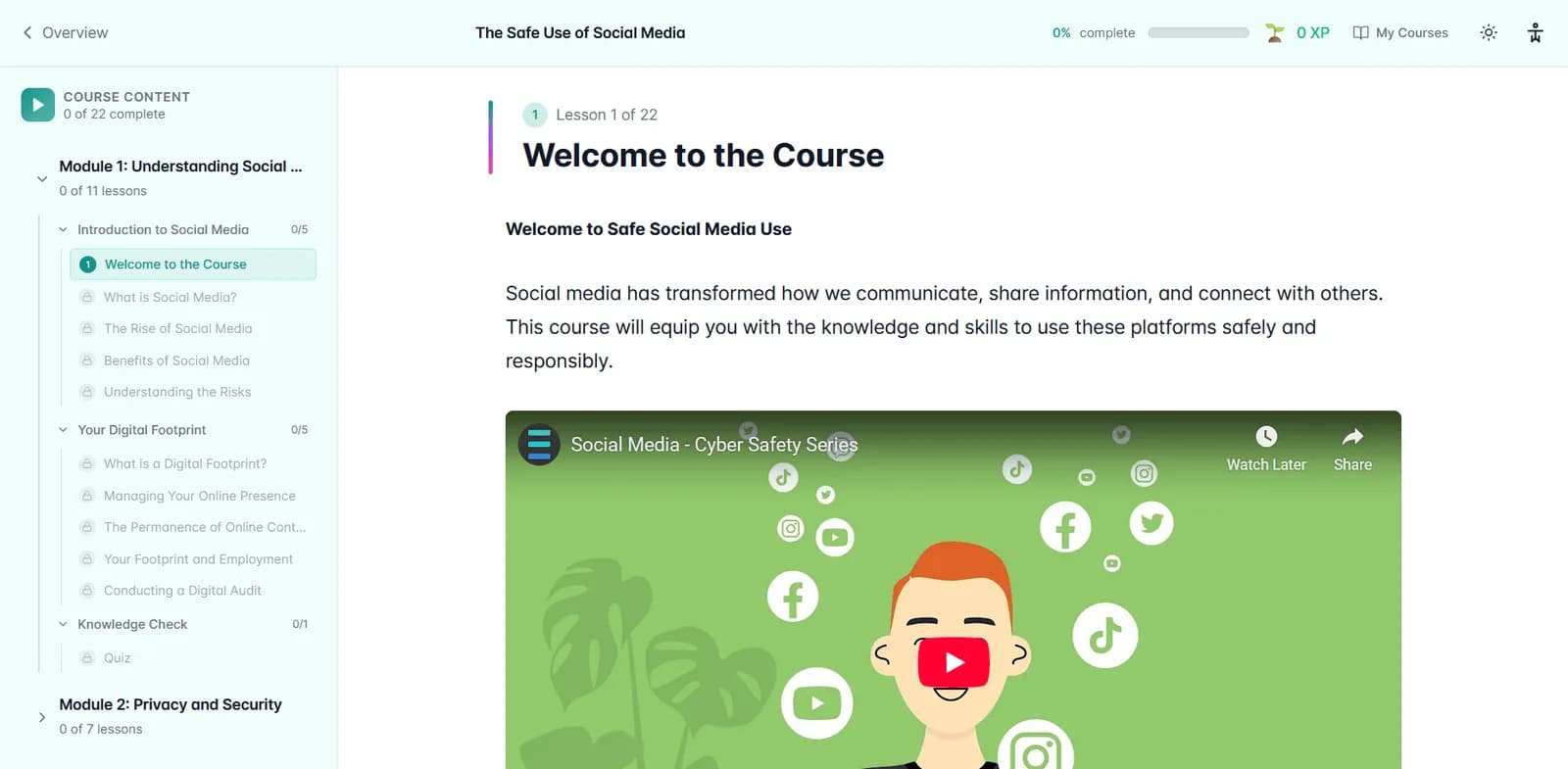
Accessibility is now a core requirement for online learning. Course teams need to review not only their learning management system (LMS), but also course pages, assessments, videos, documents and third-party tools. WCAG 2.2 Level AA provides a practical standard for that work.
The timing matters. In the UK, the Equality Act 2010 requires service providers to make reasonable adjustments for disabled learners, and the Public Sector Bodies (Websites and Mobile Applications) Accessibility Regulations 2018 apply to public-sector websites and apps. Accessibility is not a deadline on the horizon. It is a duty that applies to the courses your organisation delivers today.
The best response is not to wait for a deadline. Set a clear standard, assess existing content and fix barriers as part of routine course maintenance.
Know which requirements apply
WCAG is a technical standard. The legal duties sit alongside it, and each institution should confirm how they apply to its services with its legal or accessibility team.
- Public Sector Bodies (Websites and Mobile Applications) Accessibility Regulations 2018: These regulations require covered public-sector organisations to make websites and apps accessible and publish an accessibility statement. The GOV.UK guidance identifies WCAG 2.2 AA as the standard for meeting the requirements.
- Equality Act 2010: Service providers must make reasonable adjustments for disabled people. That duty covers digital learning services, not only physical buildings.
WCAG 2.2 extends WCAG 2.1. The W3C recommendation says content conforming to 2.2 also conforms to 2.1. Using 2.2 AA as your authoring target can therefore help institutions address the established baseline while improving access to newer interaction patterns.
What WCAG 2.2 AA means for course content
WCAG groups its requirements around four principles: content must be perceivable, operable, understandable and robust. In course authoring, this translates into practical checks across every lesson and learning activity.
- Keyboard navigation and focus: Learners must be able to operate course controls using a keyboard. Show a clear focus indicator, keep it visible when sticky headers or overlays are present, and ensure learners can move through and out of interactive components.
- Contrast and colour: Normal text generally needs a contrast ratio of at least 4.5:1; large text needs 3:1. Do not use colour alone to identify correct answers, warnings or required actions.
- Images and media: Give informative images useful text alternatives, and mark decorative images so assistive technology can ignore them. Provide accurate captions for prerecorded video and describe important visual information when it is not conveyed in the audio.
- Consistent structure: Use meaningful headings, descriptive links and predictable navigation. Keep repeated navigation and help mechanisms in a consistent order.
- Touch targets and dragging: WCAG 2.2 AA sets a minimum target size of 24 by 24 CSS pixels, subject to specified exceptions. If an activity requires dragging, provide a way to complete it without dragging.
- Accessible authentication: A sign-in process must not rely on a cognitive test, such as remembering or transcribing information, without an appropriate alternative or support.
For the full criteria and exceptions, consult the W3C WCAG 2.2 Quick Reference.
Common accessibility mistakes in online courses
An accessible LMS does not automatically make every course inside it accessible. Content authors and course teams should look for barriers in the materials and workflows they control.
Scanned readings without usable text prevent screen readers from reading the content. Provide accessible HTML or a properly tagged, searchable document.
Unedited automatic captions can misrepresent specialist terminology, speaker names and meaning. Review captions against the recording, and supply transcripts where appropriate.
Image-only instructions and diagrams leave learners without the information conveyed visually. Add a meaningful text alternative or a longer explanation nearby for complex visuals.
Mouse-dependent interactions exclude learners who use a keyboard or alternative input. Test every quiz, tab, hotspot and branching activity without a mouse.
Small controls and hidden focus make navigation difficult, especially on mobile devices. Check target size, keyboard order and focus visibility across screen sizes.
Confusing assessment design can introduce unnecessary barriers. Label inputs clearly, explain errors in text and review any time limits or authentication steps that could prevent a learner from completing the task.
Audit existing courses in a manageable sequence
A course accessibility review should combine automated checks with human testing. Automated tools can identify some issues, such as missing alternative text or contrast problems, but cannot confirm that a chart description is useful or that an assessment works for a keyboard user. Check with your legal or accessibility team which duties apply to your organisation.
- Build an inventory. List active courses, key pages, documents, media, assessments and third-party tools. Identify required learning activities and the content with the greatest reach.
- Check common patterns first. Review course templates, navigation, headings, colour use, links, images and player controls. Fixing a shared template can improve many courses at once.
- Test the full learner journey. Use a keyboard to sign in, navigate lessons, use interactions and submit assessments. Check that focus is visible and that no control traps the learner.
- Review media and documents. Sample captions, transcripts, image descriptions and accessible document structure. Prioritise content learners must use to meet course outcomes.
- Test with people and assistive technology. Include screen-reader and zoom testing, and involve disabled learners or accessibility specialists where possible.
- Record and follow up. Assign owners, prioritise barriers, document fixes and retest after changes. Make a process for learners to report an issue and receive an accessible alternative promptly.
Keep an issue log with the course, barrier, affected activity, priority, owner and resolution. This creates a clear remediation record and supports repeatable reviews each term.
Build accessibility into authoring workflows
Accessible course design is easier to maintain when teams use consistent templates and review steps. A suitable authoring platform should support structured content creation, learner delivery and oversight without requiring every author to rebuild common elements from scratch.
ExyonLearn combines a block-based editor with more than 25 content block types, interactive components and assessment tools. The platform is designed to WCAG 2.2 AA, with keyboard navigation, screen-reader support and learner settings for visual comfort, text size and spacing. Sign-in runs through ExyonID, Exyon's single sign-on service, with multi-factor authentication enforced for staff and administrators and support for passkeys or your organisation's own Microsoft or Google identity provider. Authors still need to review the accessibility of their own content, including uploaded files, media and third-party materials.
Neural voice narration can add an audio option to text-based lessons. It does not replace captions for video or meaningful text alternatives for images. Likewise, interactive components and assessment tools should be tested in their published course context, not only in the editor.
For institutions that publish courses elsewhere, ExyonLearn supports SCORM 1.2, SCORM 2004 and xAPI export. A SCORM-compliant LMS can deliver those packages, but teams should also test the exported course in the target LMS: accessibility can be affected by the player, navigation and hosting environment.
Audit now and keep improving
UK accessibility obligations are already in force, and they apply to the courses organisations deliver today. A focused review now gives course teams time to identify barriers, prioritise remediation and make accessibility part of routine course production.
Explore ExyonLearn’s course authoring and delivery features, read about our approach to accessibility, or book a demo to discuss how your organisation creates, delivers and reviews accessible learning.
Related articles
- How AI Quiz Generation Speeds Up Course Authoring
10 November 2026
AI quiz generation speeds up course authoring by producing draft questions from lesson content, giving authors a starting point they can review and edit…
- Accessibility Checks That Change How You Publish Courses
6 November 2026
Accessibility checks change course publishing by helping teams identify barriers while content is being authored, before it reaches learners. An authoring…
- Looking for Course Authoring Software? 10 Things to Know
2 November 2026
Ten things to check when choosing course authoring software, so your team can create, review and improve learning while tutors keep a clear view of progress.
See it with your own programmes
Book a personalised walkthrough built around how your organisation funds, delivers and evidences training. No obligation.